Step 2: Dashboard Overview
SanitizeEmail•24 Dec 2025•5 min Read
After you log in, the dashboard is the central place where you can access every tool inside SanitizeEmail. This page gives you a clear overview of what each section does so you know exactly where to start.
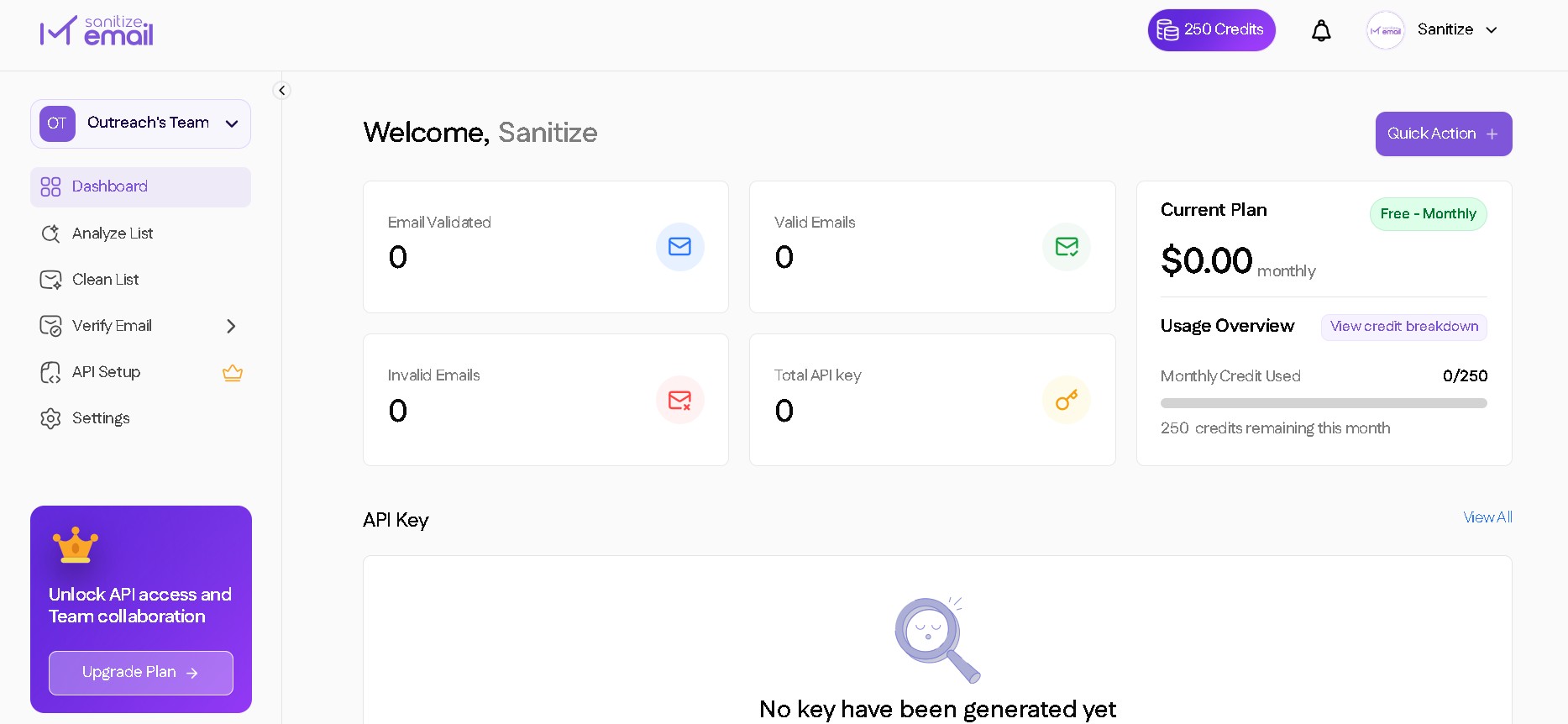
Below is each section you will see on your dashboard, along with a simple explanation of what it is used for.
Recommended starting point
Analyze List scans your uploaded email file and estimates your potential bounce rate. It gives an overview of your list quality before spending any credits on validation.
Use this when:
Clean List removes duplicate email addresses from your file. By keeping only unique emails, it saves credits and avoids validating the same email multiple times.
Use this when:
Dropdown menu
The Verify Email section is a dropdown on your dashboard. It gives you two ways to validate emails, depending on how many addresses you want to check.
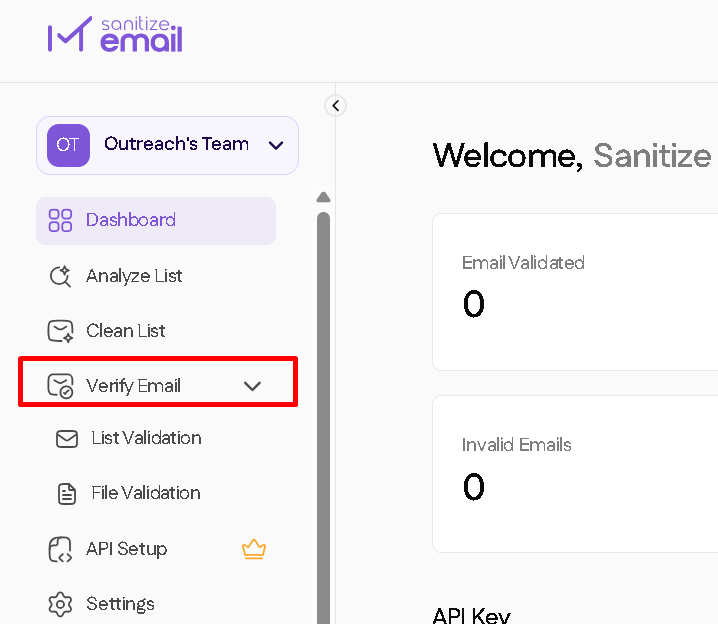
List Validation allows you to manually enter or paste email addresses directly into the dashboard. You can paste up to 25 emails at a time, and the system automatically extracts email addresses even from unstructured text.
This is useful for quick checks without uploading a file.
Use this when:
File Validation allows you to upload a full email list in CSV or XLSX format for bulk verification. The system automatically detects the email column and removes duplicates before credits are charged.
Each unique email is then fully validated and assigned a result status.
Use this when:
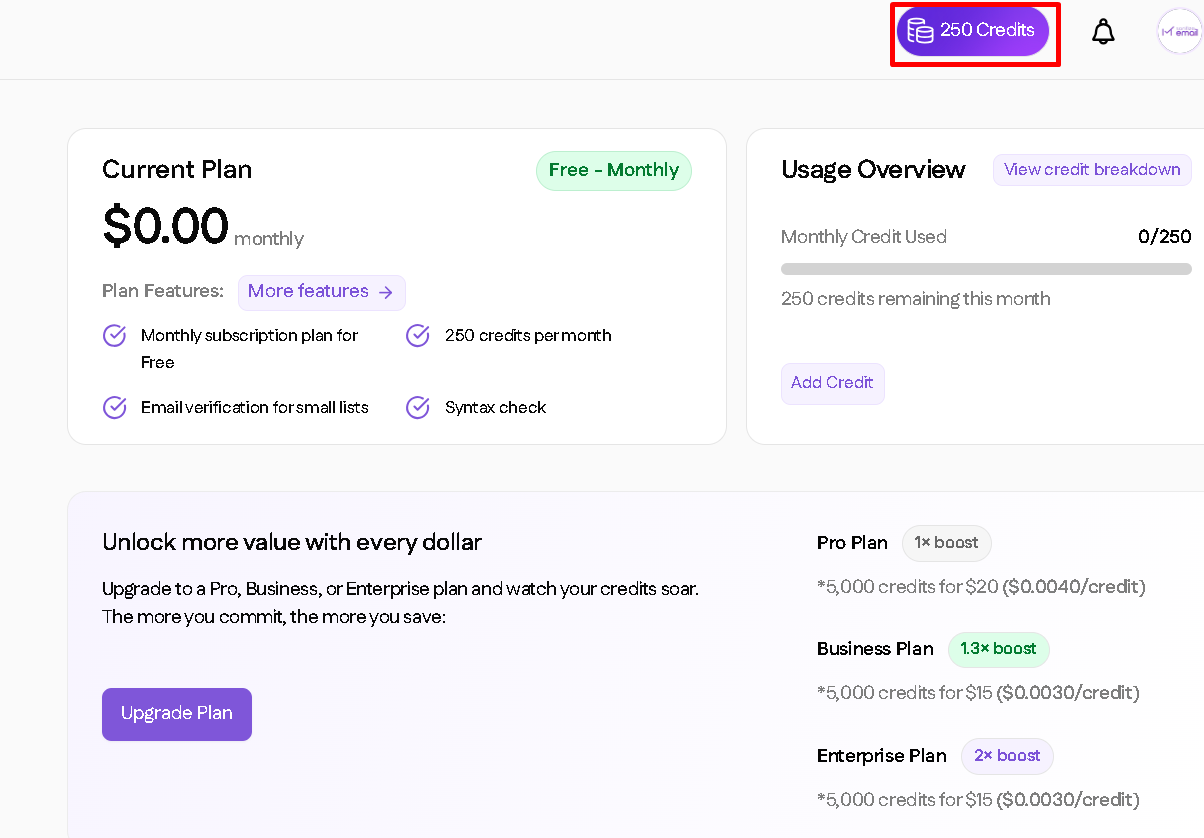
This section shows your available credits, credit usage history, and current plan details. From here, you can monitor how many credits you have left and purchase additional credits if needed.
Use this when:
Manage collaboration
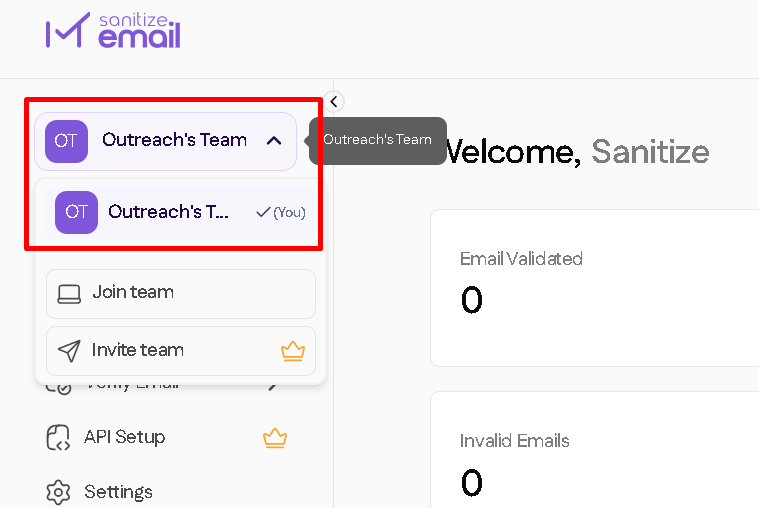
The Teams section allows you to view your current team, see the teams you belong to, join a new team using a code, or invite members.
Manage account details
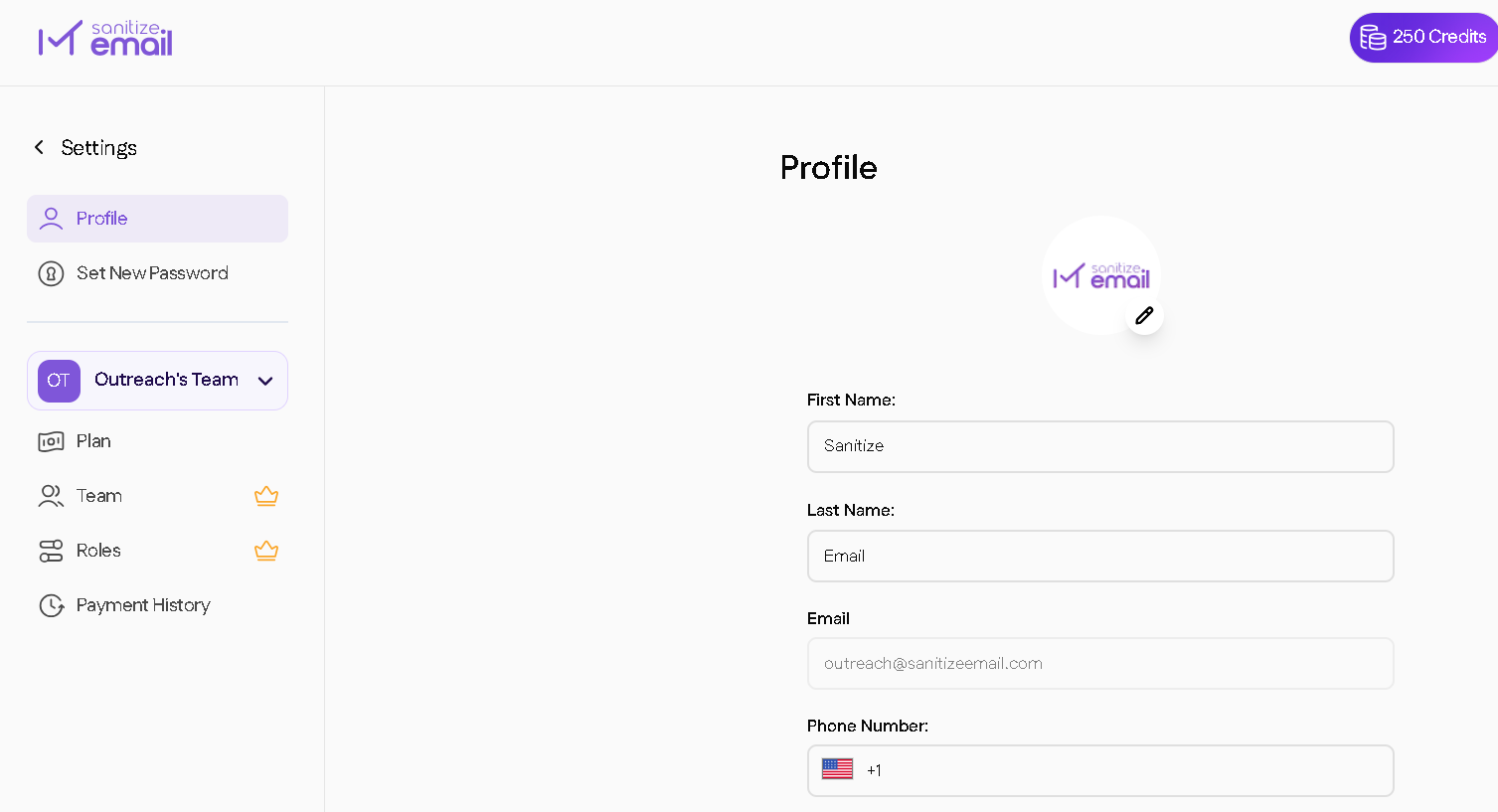
Update your profile information, password, and notification preferences here.
Use this when:
Integrate with your applications
View and manage your API key for integrating SanitizeEmail with your website, CRM, or internal tools. You can generate, copy, or regenerate your API key here.
Use this when: