knowledge-base

Step 9: Team Collaboration and Roles

SanitizeEmail24 Dec 20255 min Read
features image

Teams allow multiple users to work together inside SanitizeEmail by sharing access to validation tools, credits, and settings. This page explains how teams work, how to join or invite members, and how roles and permissions are managed.

Teams Overview

Each user is placed in their own personal team by default. The team dropdown at the top of the dashboard shows the name of the team you are currently working in.

From this dropdown, you can:
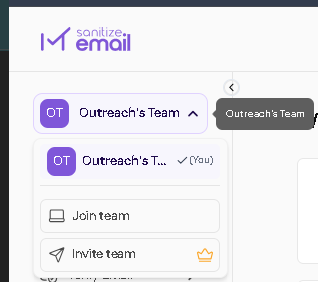
  • Switch between teams you are part of
  • Join another team using a code
  • Invite members to your current team
  • Upgrade your plan if required
Team overview

Joining a Team

You can join another team by entering a valid team invitation code.

Steps:

  1. Open the team dropdown
  2. Click Join a Team
  3. Enter the invitation code
  4. Confirm to join the team

Once joined, the new team will appear in your team list.
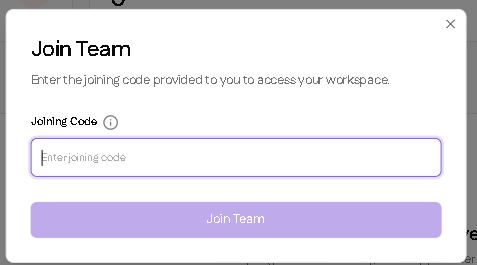
Join Team

Inviting Team Members

Inviting members is done from the team dropdown.

Steps:

  1. Open the team dropdown
  2. Click Invite to Team
  3. Enter the user’s first name, last name, and email
  4. Assign a role
  5. Send the invitation

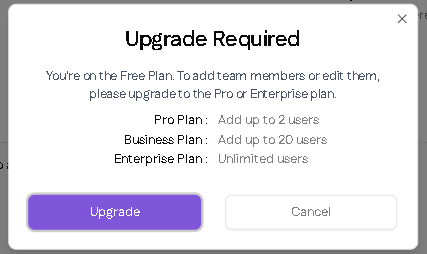
If your current plan does not support inviting team members, clicking Invite to Team opens an upgrade prompt with a button linking to the Plans page.
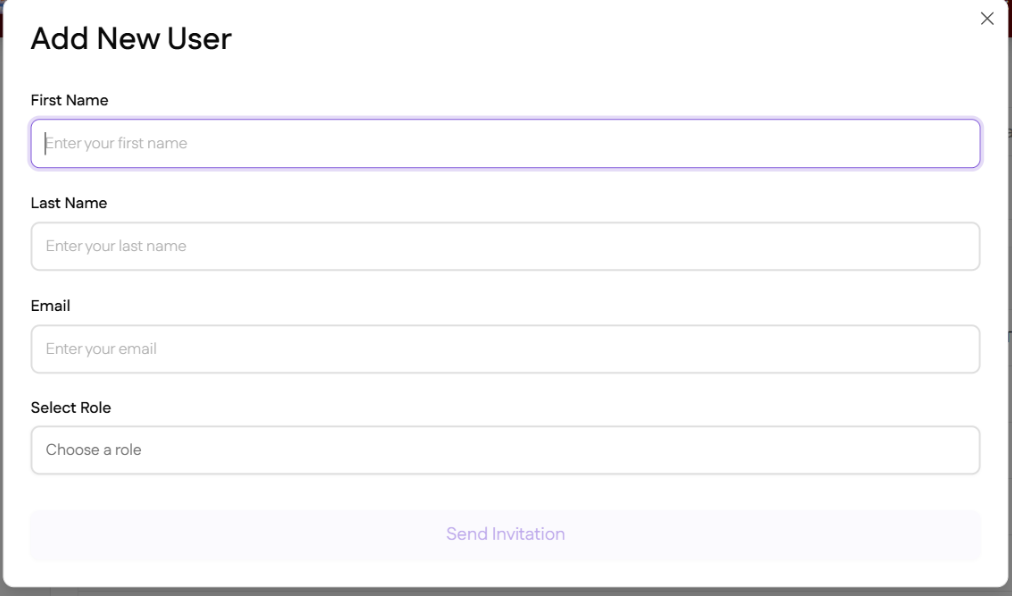
add new user
upgraderequiredforinvite

Team Member Limits by Plan

Team size depends on your subscription plan:

  • Free: Can join teams but cannot invite or create teams
  • Pro: Up to 2 team members
  • Business: Up to 20 team members
  • Enterprise: Unlimited team members

Roles and Permissions

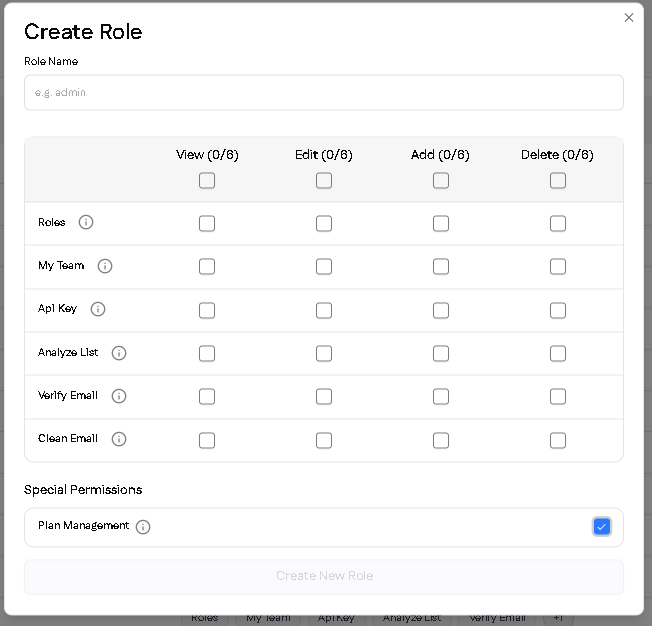
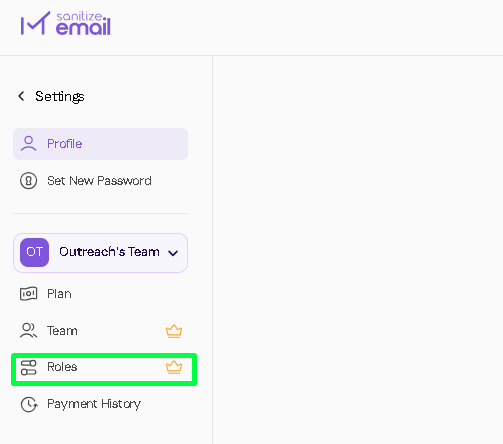
Roles in SanitizeEmail are customizable. You can create any role and assign specific permissions to it. Permissions control what actions a role can perform.

Each permission supports:

  • View
  • Edit
  • Add
  • Delete

Permission Areas

Permissions can be assigned for the following areas:

Roles

  • Modify roles and role permissions

My Team

  • Manage team details and members

API Key

  • View existing API keys
  • Edit or regenerate API keys
  • Add new API keys
  • Delete API keys

Analyze List

  • Access and manage Analyze List actions

Verify Email

  • Access and manage email validation actions

Clean Email

  • Access and manage list cleaning actions

Roles allow you to control exactly what each team member can see or manage inside the dashboard.
team roles
create roles for team

When to Use Teams

  • You want multiple users working on validations
  • You need controlled access to credits, API keys, or tools
  • You want to manage permissions across different users