Step 5: Validate Multiple Emails Manually
SanitizeEmail•24 Dec 2025•5 min Read
The List Validation tool lets you manually check up to 25 email addresses at once. It's perfect when you want to quickly verify a small set of emails without uploading a file.
SanitizeEmail automatically detects email addresses, even if they are mixed inside sentences, paragraphs, or unordered text.
Use List Validation when you want to:
You do not need to format the text. Just paste what you have, and the system will extract the emails.
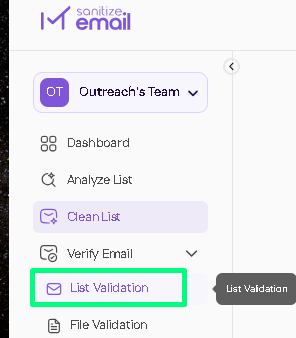
Go to Verify Email > List Validation in the left menu.
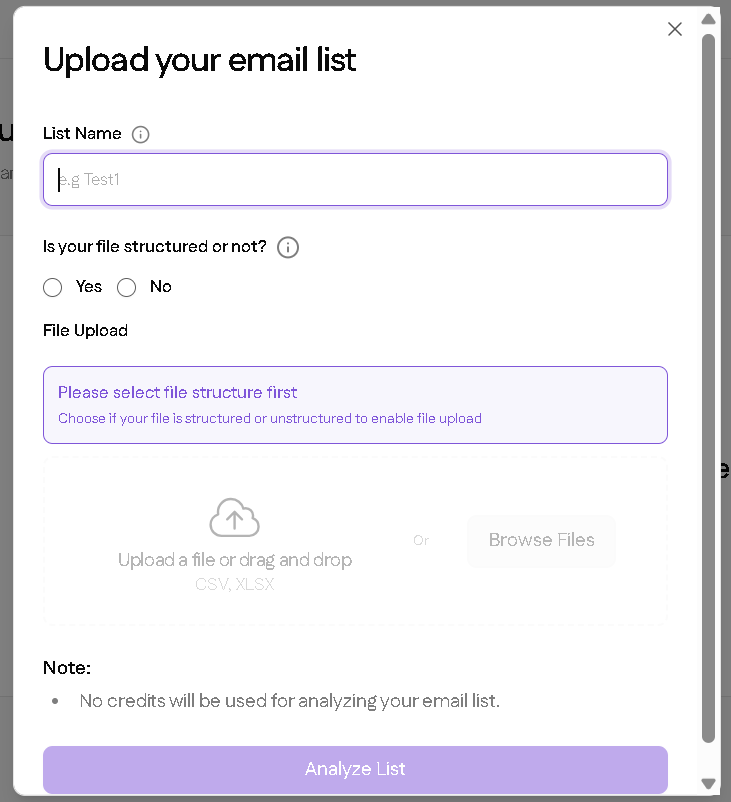
You can add your list in two ways:
Paste your email addresses directly into the input box.
Upload a CSV or XLSX file containing your email list.
You can choose how deeply the system verifies your list.
Options include:
(Full explanations of these validation types are provided in the Validation Results section later.)
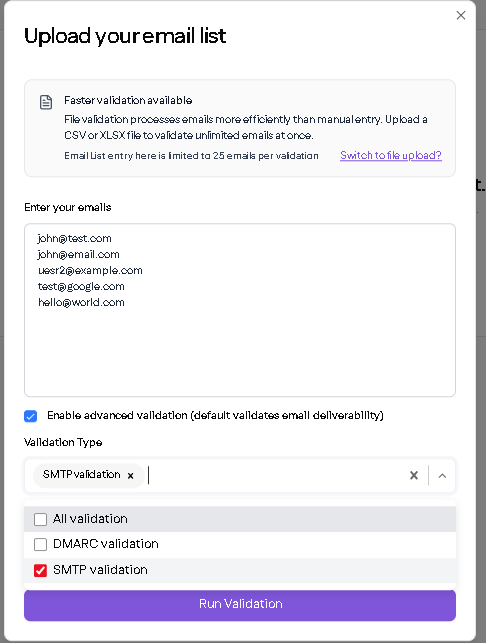
Click Run Validation.
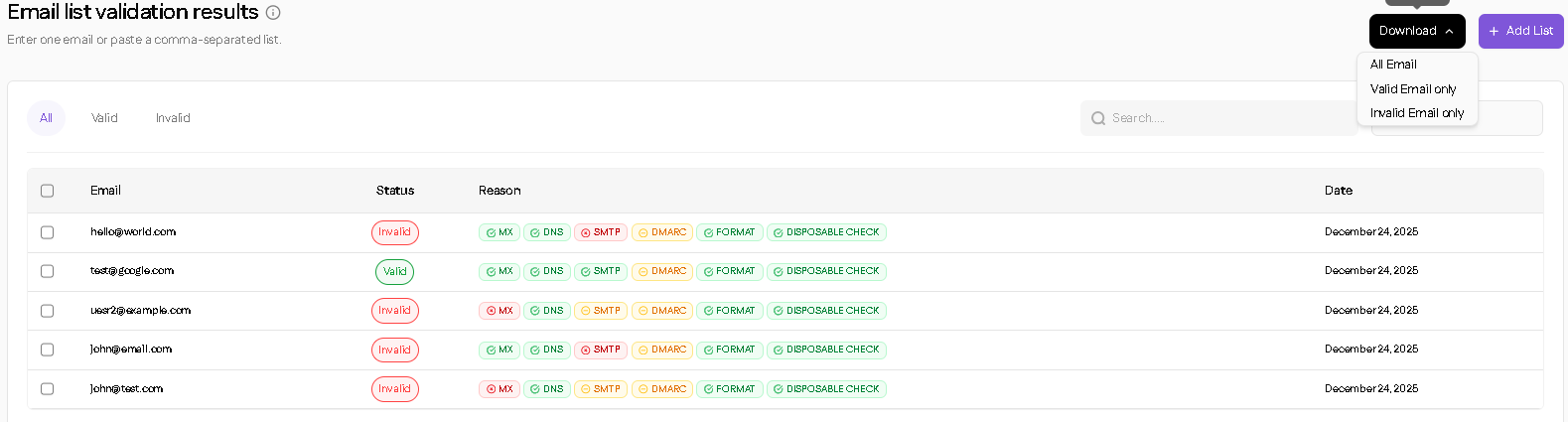
After the process finishes:
Downloads are available in CSV or XLSX formats.